> ## Documentation Index
> Fetch the complete documentation index at: https://docs.rastro.ai/llms.txt
> Use this file to discover all available pages before exploring further.
# Photo Studio Quickstart
> Edit product photos and generate marketing images with AI
Photo Studio is the AI image editor built into the Rastro dashboard. Select any product in a catalog, describe the change you want in plain language, and generate polished product imagery — lifestyle scenes, clean packshots, marketing shots, even short videos. Results save straight back to the product's image gallery.
Photo Studio works on the products in a **catalog**, so you need one before you start. Create a catalog and add items with product images first — see the [Catalogs Quickstart](/catalogs/quickstart). If you have no catalog yet, you can also create one directly from the catalog picker inside Photo Studio.
## 1. Open Photo Studio and pick a catalog
Go to [dashboard.rastro.ai/photo-studio](https://dashboard.rastro.ai/photo-studio), or click **Studio** (the camera icon) in the dashboard sidebar. Then choose your catalog in the picker at the top of the left panel — the panel fills with your products.
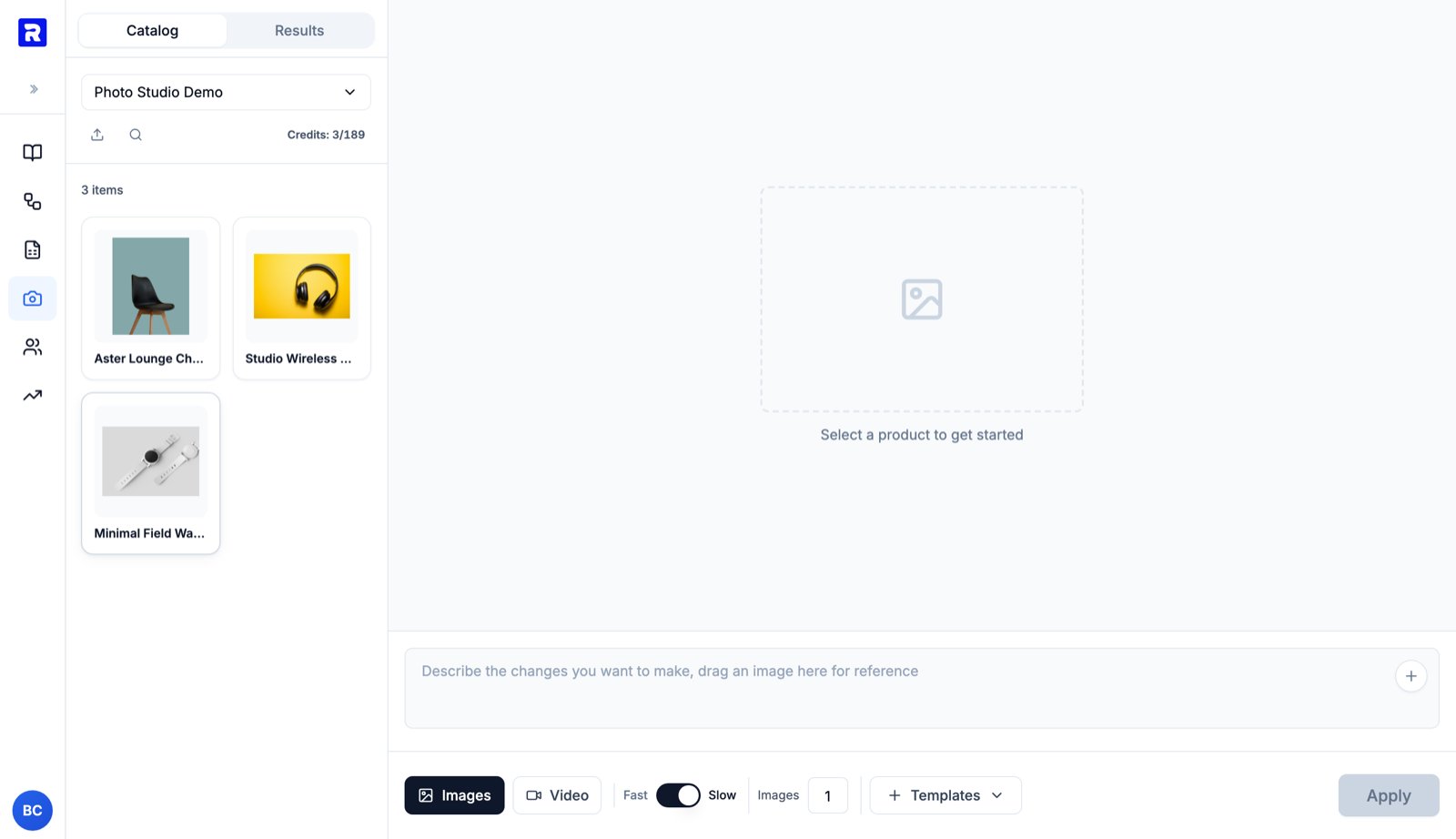 You can also upload loose images or videos with the upload button, and search your catalog with the search icon.
## 2. Select a product and describe your edit
Click a product card to load its image onto the canvas, then describe the change you want in the prompt box. A few examples:
* `Place this chair in a bright Scandinavian living room with natural window light`
* `Put the product on a pure white background for e-commerce`
* `Macro close-up of the fabric texture, soft studio lighting`
You can also **drag an image into the prompt box** to use it as a style or context reference.
You can also upload loose images or videos with the upload button, and search your catalog with the search icon.
## 2. Select a product and describe your edit
Click a product card to load its image onto the canvas, then describe the change you want in the prompt box. A few examples:
* `Place this chair in a bright Scandinavian living room with natural window light`
* `Put the product on a pure white background for e-commerce`
* `Macro close-up of the fabric texture, soft studio lighting`
You can also **drag an image into the prompt box** to use it as a style or context reference.
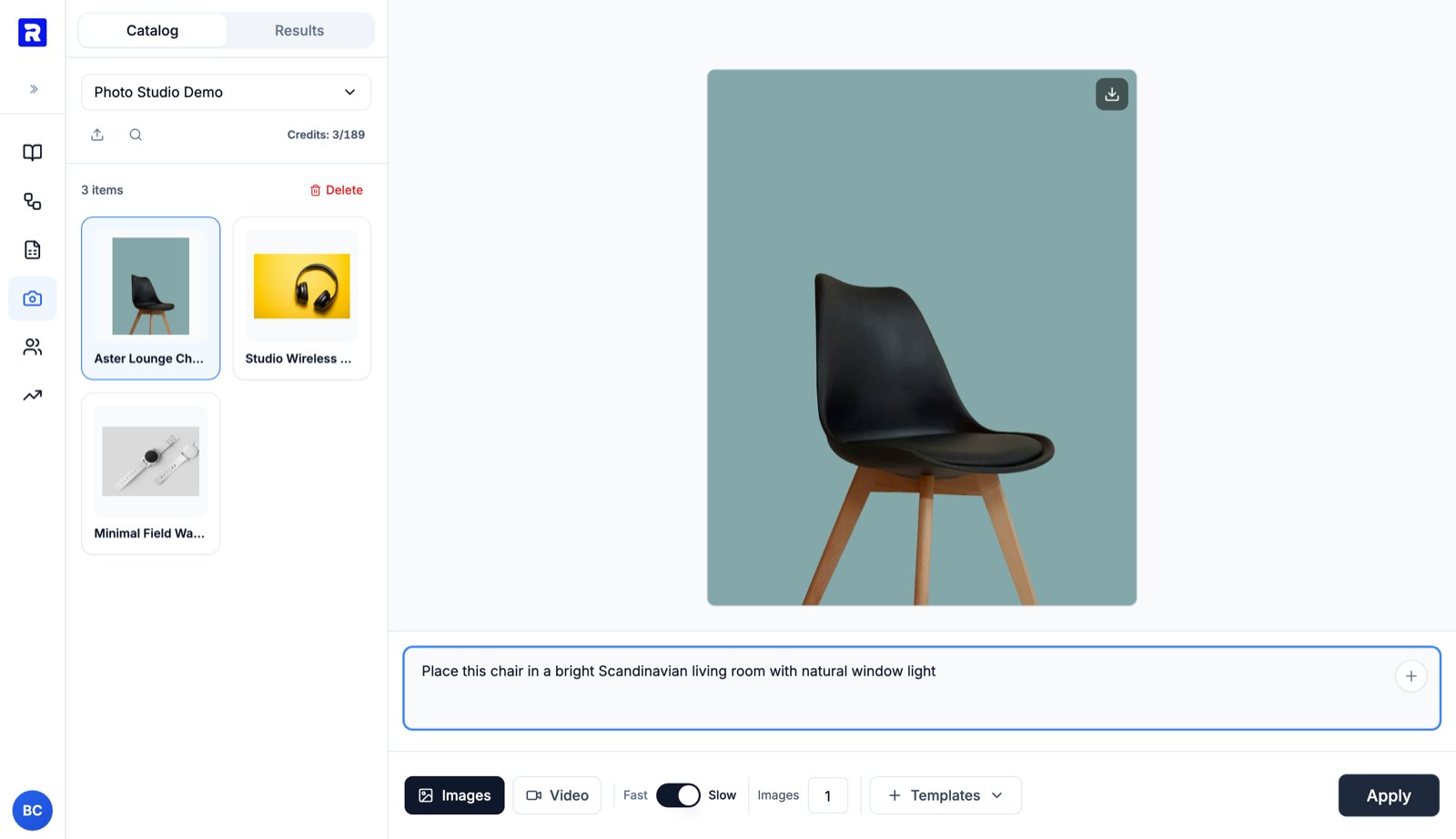 Before you apply, the bottom toolbar lets you tune the run:
* **Fast / Slow** — Fast is cheaper and quicker; Slow uses the highest-quality model.
* **Images** — how many options to generate in one run (1–20). Generating several lets you pick the best one.
* **Templates** — reusable prompts for common shots (see below).
## 3. Apply and let it generate
Click **Apply**. The job runs in the background — the left panel switches to the **Results** tab, where each run shows its input → output thumbnails and a live status. You can keep working, queue edits on other products, or leave the page while it runs.
Generation typically takes under a minute for images. You are only charged credits for successful generations.
## 4. Review the result and save it to your catalog
When the run completes, the result opens on the canvas. Use the buttons in the top-right corner to **download** the image or **save it to your catalog**.
Before you apply, the bottom toolbar lets you tune the run:
* **Fast / Slow** — Fast is cheaper and quicker; Slow uses the highest-quality model.
* **Images** — how many options to generate in one run (1–20). Generating several lets you pick the best one.
* **Templates** — reusable prompts for common shots (see below).
## 3. Apply and let it generate
Click **Apply**. The job runs in the background — the left panel switches to the **Results** tab, where each run shows its input → output thumbnails and a live status. You can keep working, queue edits on other products, or leave the page while it runs.
Generation typically takes under a minute for images. You are only charged credits for successful generations.
## 4. Review the result and save it to your catalog
When the run completes, the result opens on the canvas. Use the buttons in the top-right corner to **download** the image or **save it to your catalog**.
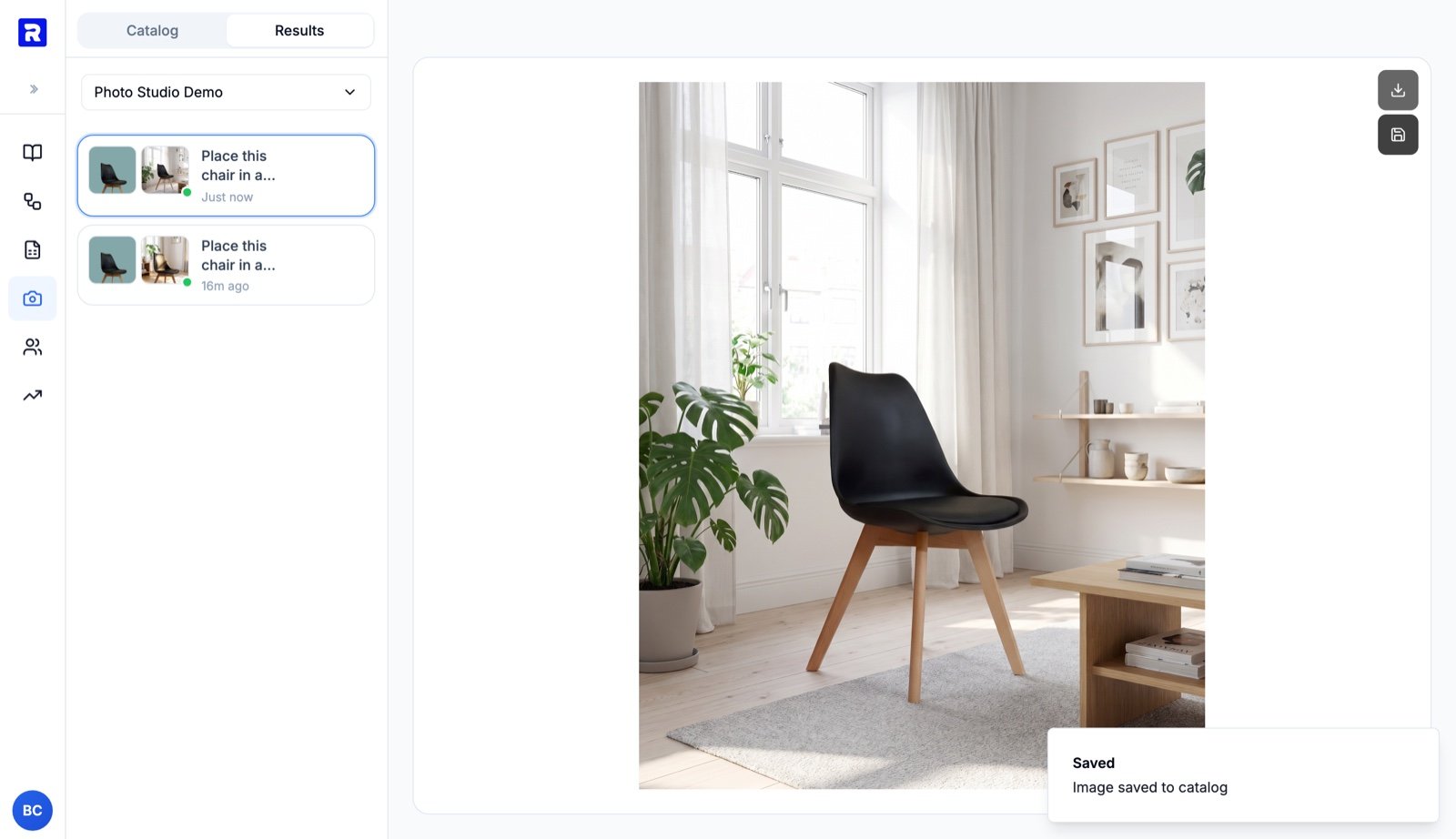
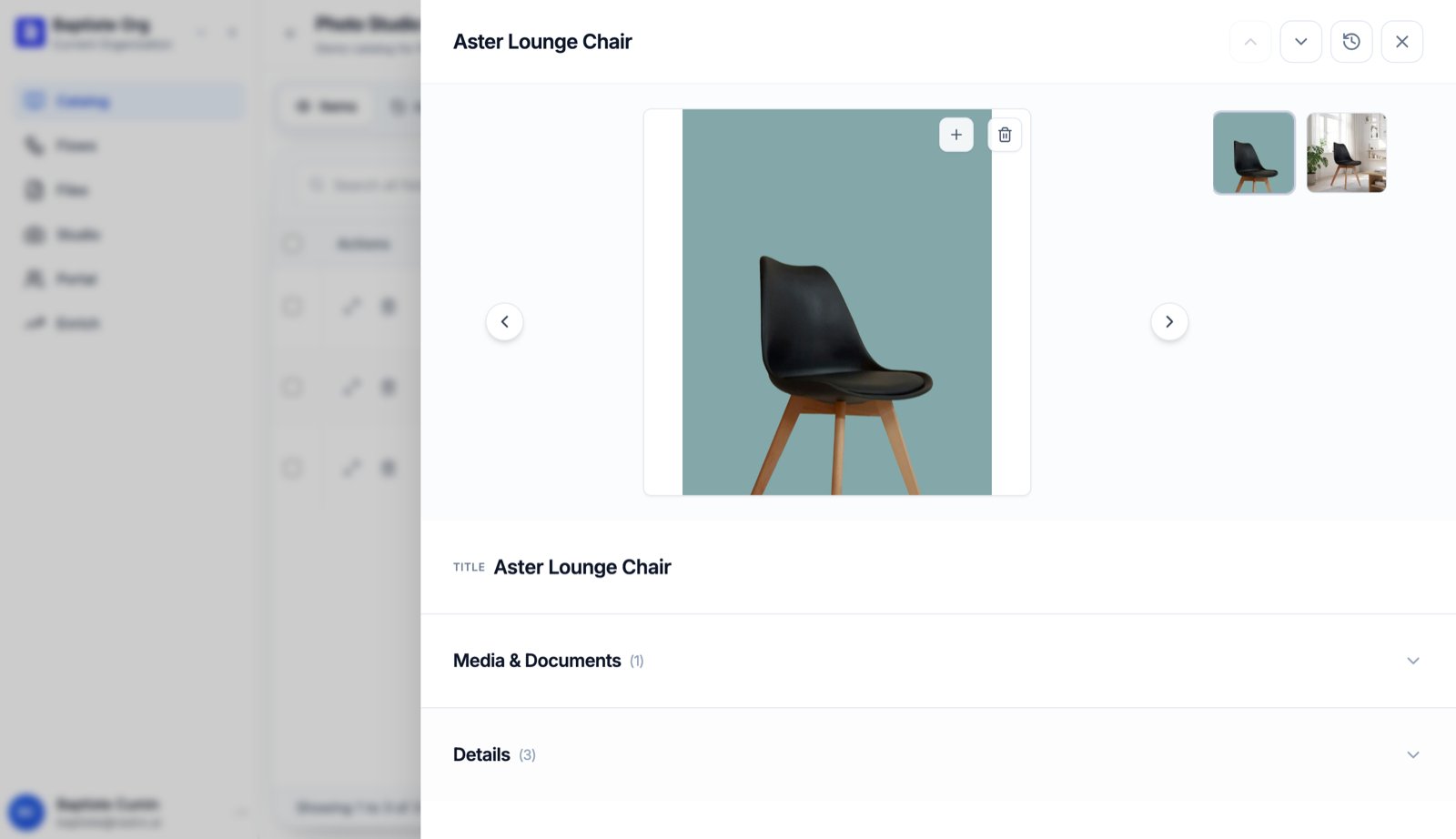
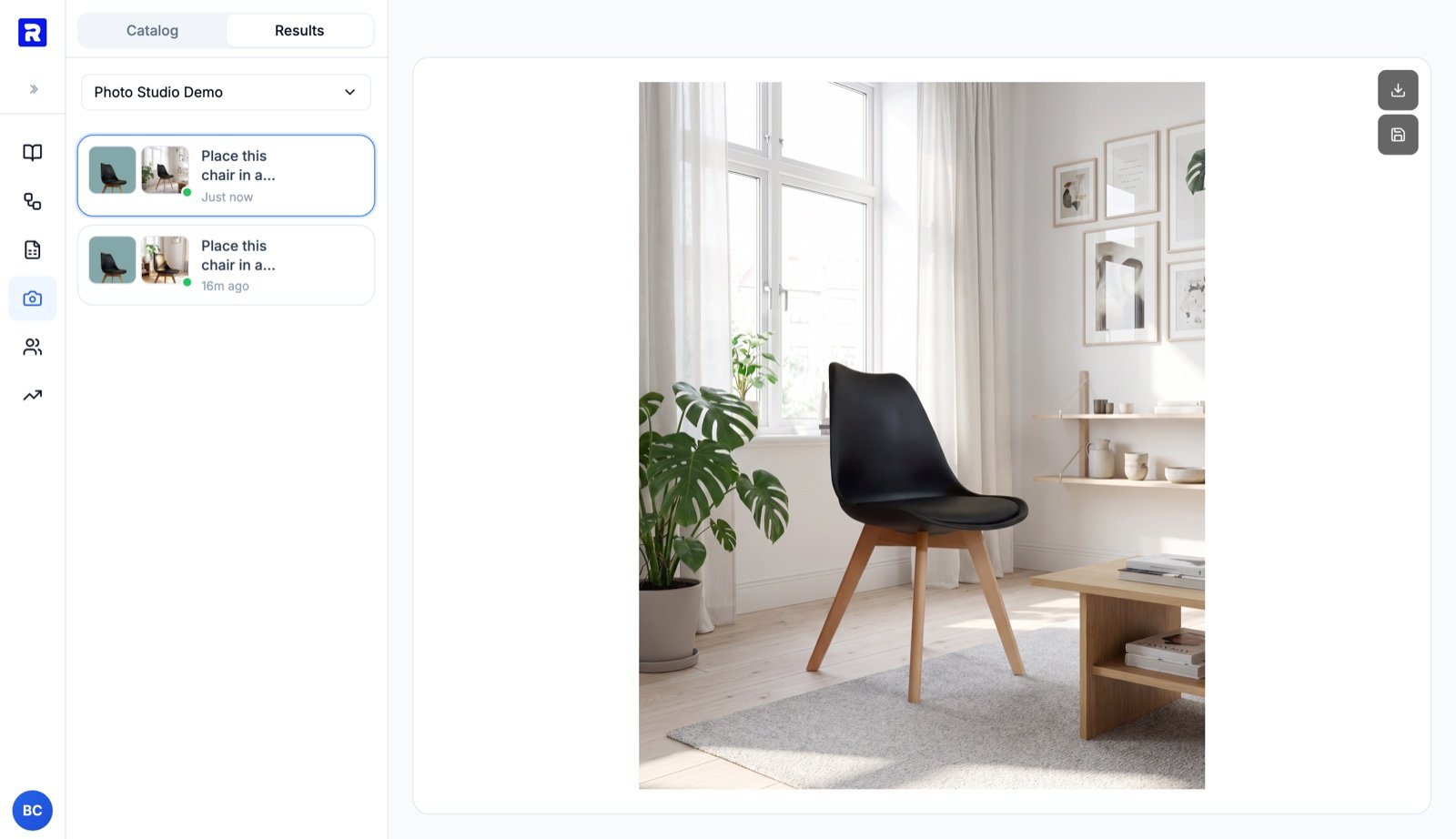 Saving **appends the image to the product's `image_urls` gallery** — your original photos are never overwritten. The product card updates immediately.
 Back in the catalog view, the new image sits alongside the original on the item — ready to use anywhere your catalog is consumed (exports, the public API, connected channels).
 ## Generate videos too
Switch the tool from **Images** to **Video** to turn a product photo into a short clip. Pick a duration (**5s / 10s / 15s**), describe the motion, and optionally drag an image into the prompt box to use as the end frame.
## Generate videos too
Switch the tool from **Images** to **Video** to turn a product photo into a short clip. Pick a duration (**5s / 10s / 15s**), describe the motion, and optionally drag an image into the prompt box to use as the end frame.
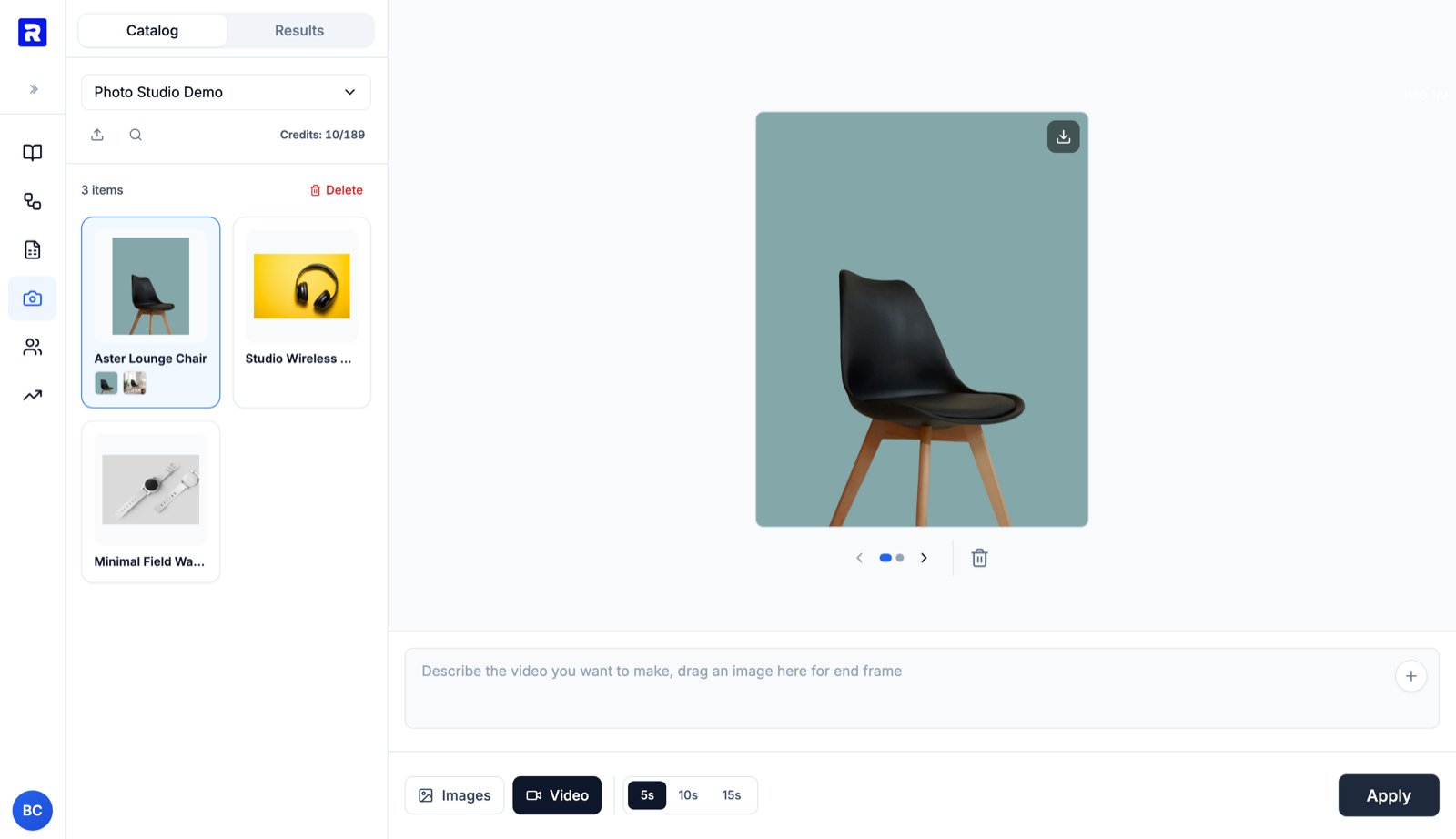 Finished videos appear in the same Results tab and can be downloaded, trimmed, or saved to the product's `video_urls` just like images.
***
## What's Next
All tools, templates, costs, and behaviors
Create the catalog Photo Studio works on
How credits and billing work
Finished videos appear in the same Results tab and can be downloaded, trimmed, or saved to the product's `video_urls` just like images.
***
## What's Next
All tools, templates, costs, and behaviors
Create the catalog Photo Studio works on
How credits and billing work