

Tools
Quality: Fast vs Slow
The Fast / Slow switch picks the model tier for image generation:- Fast — quickest and cheapest; great for iterating on prompt ideas.
- Slow (default) — the highest-quality model; use it for final shots.
Multiple options per run
Set Images to generate up to 20 candidates from one prompt. Each generated image is billed separately, so 4 images cost 4× the single-image price. Generating a handful and picking the best result usually beats re-prompting one at a time.Reference images
Drag any image into the prompt box to guide the generation:- Images tool — the drop becomes a style/context reference alongside your prompt.
- Video tool — the drop becomes the end frame, and the clip animates from the product image toward it.
Prompt templates
Click Templates in the toolbar to open the Template Library — ready-made prompts for common product shots (lifestyle context, e-commerce hero on white, detail close-ups, resolution enhancement, marketplace image sets, and more). Selecting a template fills the prompt box; you can edit it before applying. To reuse a prompt you’ve written, type it in the prompt box, open Templates, give it a name under Save Current Prompt, and click Save. Templates are shared across your organization.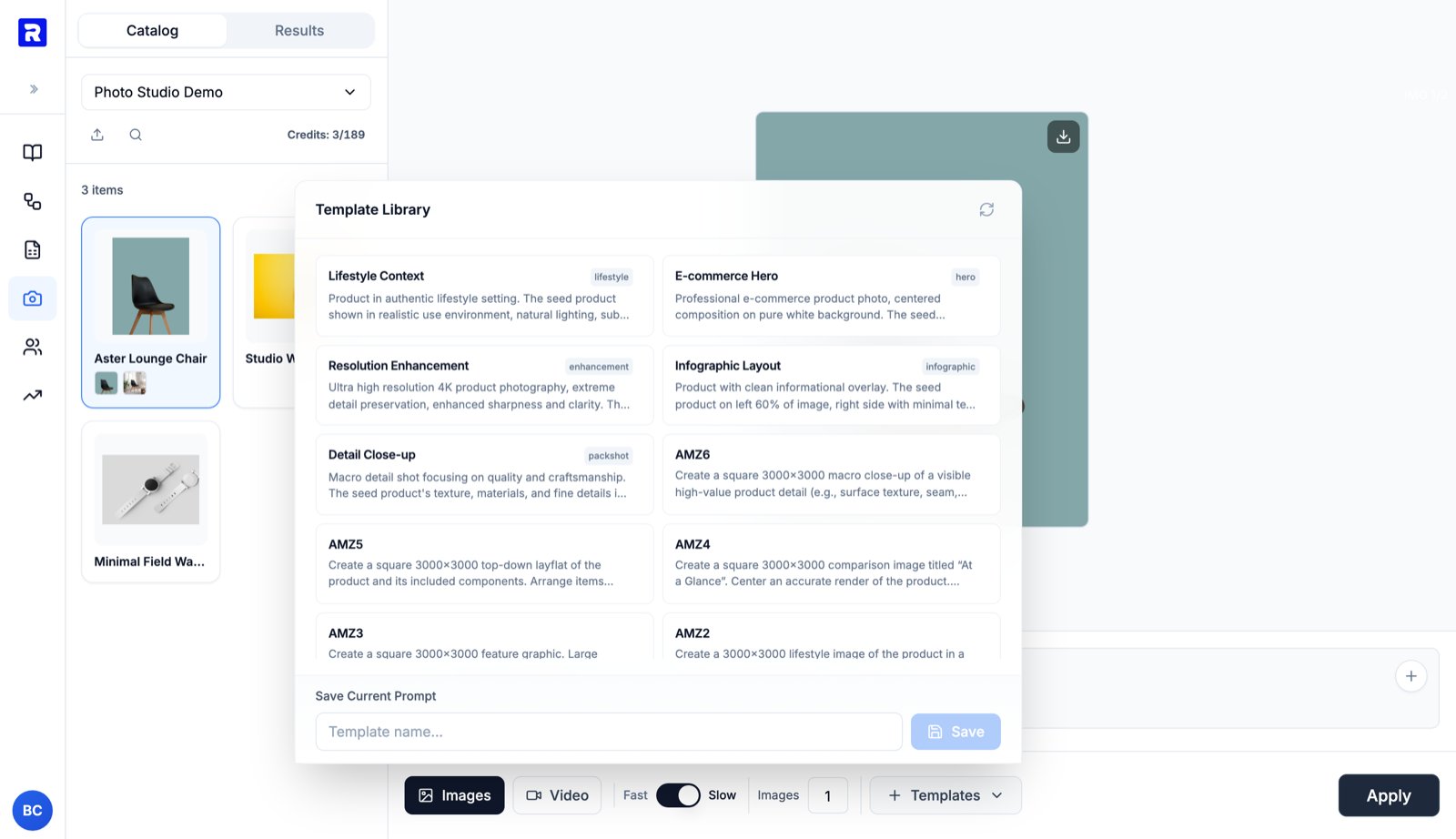
The Template Library: pick a ready-made prompt or save your own for the team.
Results and history
The left panel’s Results tab is the generation history for the selected catalog. Each run shows its input → output thumbnails, the prompt, a relative timestamp, and a status dot (blue pulsing = processing, green = completed, red = failed). Hover a run to pin it (pins are shared with your team) or delete it. Click any completed run to reopen its result on the canvas:- Download the file
- View full size
- Save to catalog (see below)
- Trim (videos only) — cut the clip before downloading or saving
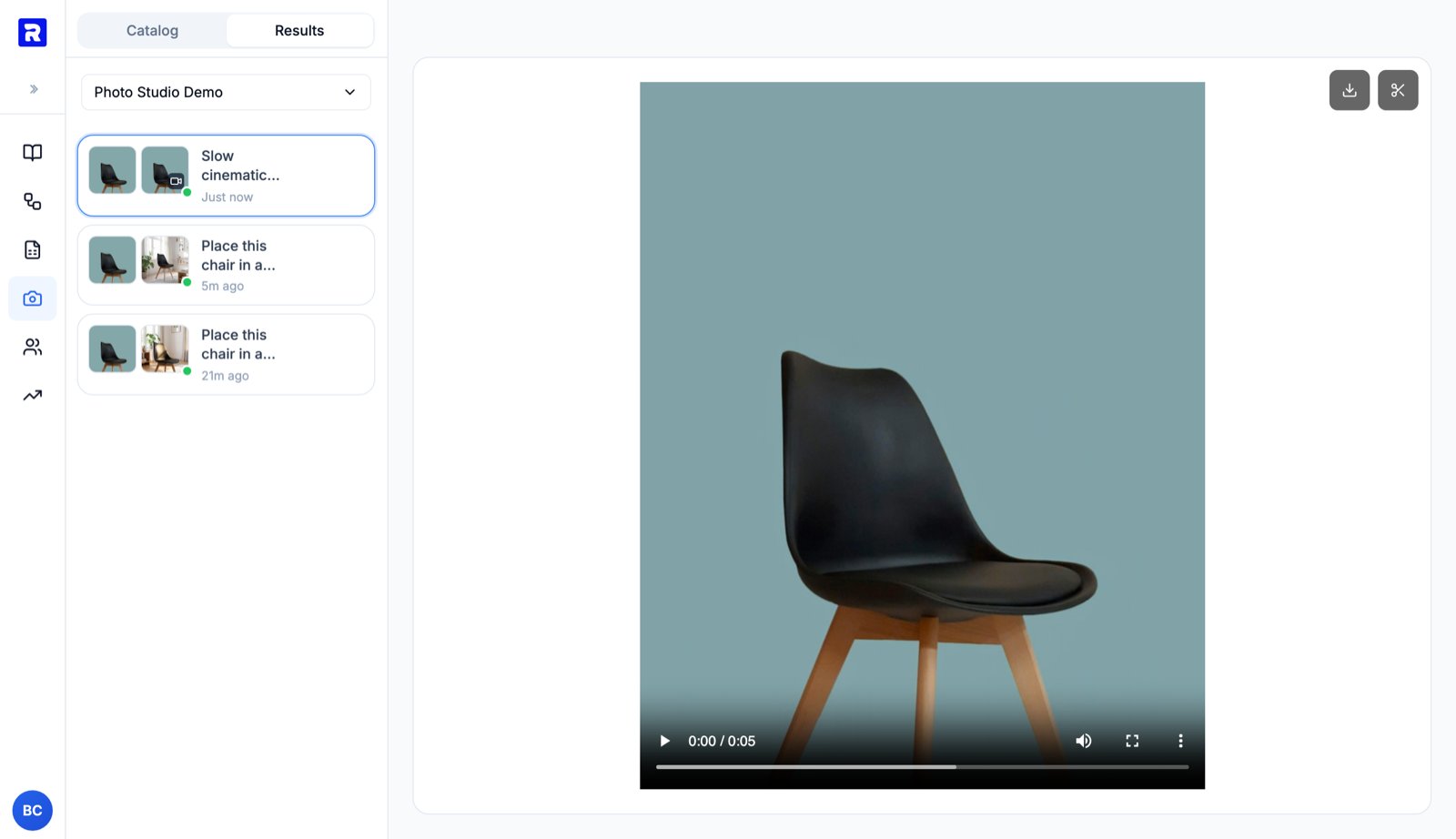
A completed video run: the Results tab tracks every generation for the catalog, and video results get a trim control.
Saving results to your catalog
Saving a result attaches it to the product it was generated from:- Images are appended to the item’s
image_urlsgallery; videos go tovideo_urls. - Existing media is never overwritten or removed — saves are additive and deduplicated.
- The change is a normal catalog item update, so it’s immediately visible in the catalog view, exports, and the public items API.
image_urls[0] is the hero.
Credits and costs
Photo Studio draws from your organization’s shared credit balance — the same pool used by enrichment. The left panel always showsCredits: <estimated cost> / <balance> for the operation you’ve configured, before you click Apply. You are only charged for successful generations.
Typical costs:
See Credits for how balances, allowances, and packs work.
Working with catalogs
- Catalog required — every generation and save is scoped to the selected catalog. Use the catalog picker’s Select a catalog entry to create one on the spot if needed.
- Products vs variants — for catalogs with product variants, the layers toggle in the left panel switches between product-level and variant-level views; saves target whichever level you’re working on.
- Upload — the upload button in the left panel accepts loose images and videos and routes them into catalog items.
- Search & pagination — search across all item fields with the search icon; large catalogs paginate at the bottom of the panel.